EcommerceIQ — Market Insights Ai-ssistance

AI Video Studio

Give every product a video that sells

A step-by-step guide

01

Meet AI Video Studio

Your product photos in — ready-to-post videos out

Ai-ssistance EcommerceIQ — Market Insights
What it is

From product photos to videos that sell

AI Video Studio turns your product photos into short, ready-to-post clips. You choose how the product moves, describe the shot, and the studio generates the video — no filming, no editing suite.

The right context per shot Each motion asks for what it needs — a texture close-up, the box, the ingredient — so the clip reflects your actual product, not a generic stand-in.
Made for feeds Vertical or square — sized for TikTok, Reels, Shorts, and Instagram.
You stay in control You pick the motion, the words, the length, and how many variations before anything generates.
Ai-ssistance EcommerceIQ — Market Insights
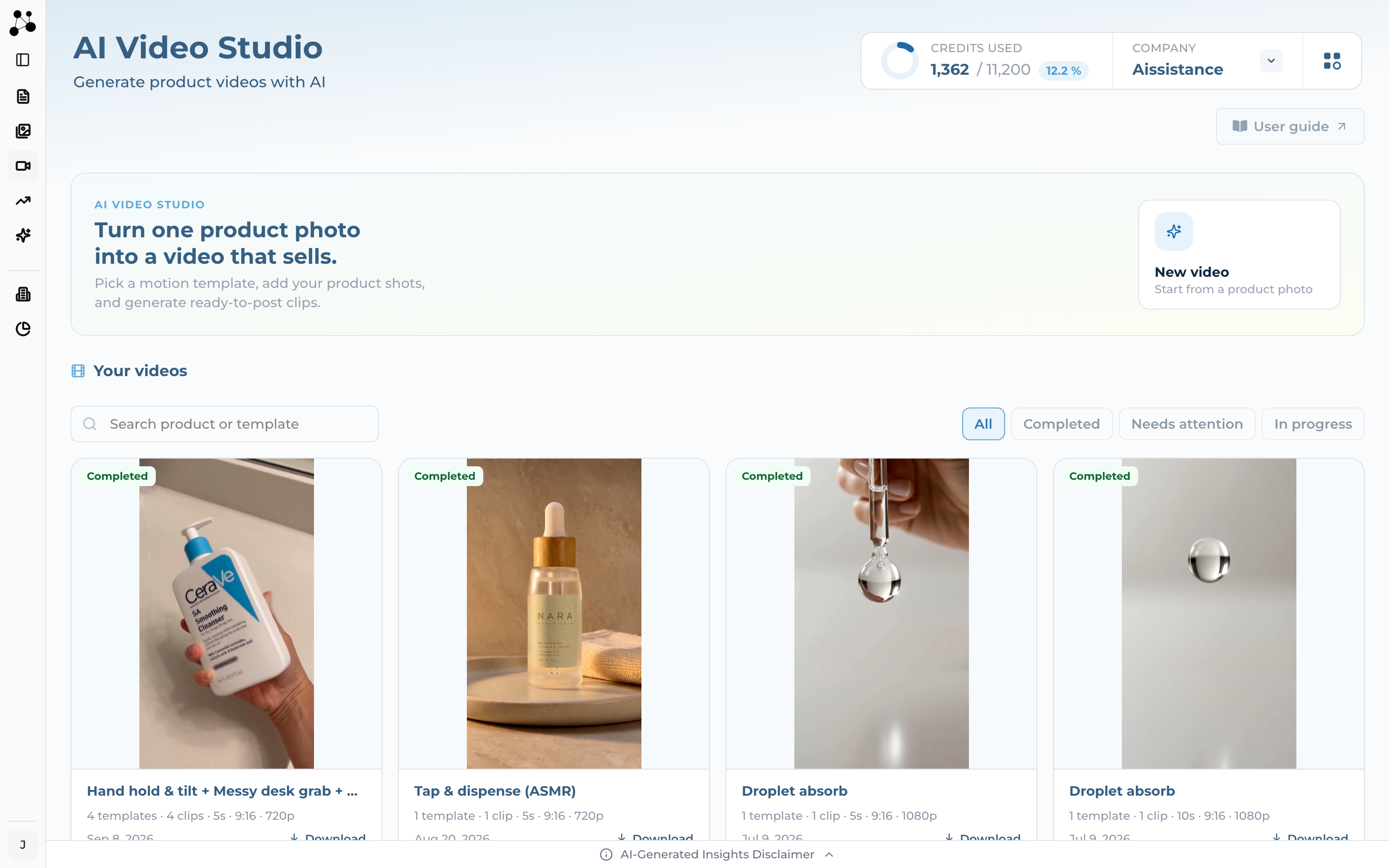
The AI Video Studio landing gallery with a New video button, a search box and status filters
Step 1

Your Videos

  • The landing gallery lists every video you’ve made. Search by product or template, and filter by All / Completed / Needs attention / In progress
  • New video starts a fresh batch from a product photo
  • First time here? The gallery stays empty until your first batch finishes
Ai-ssistance EcommerceIQ — Market Insights
02

Create a Video

The five-step editor, panel by panel

Ai-ssistance EcommerceIQ — Market Insights
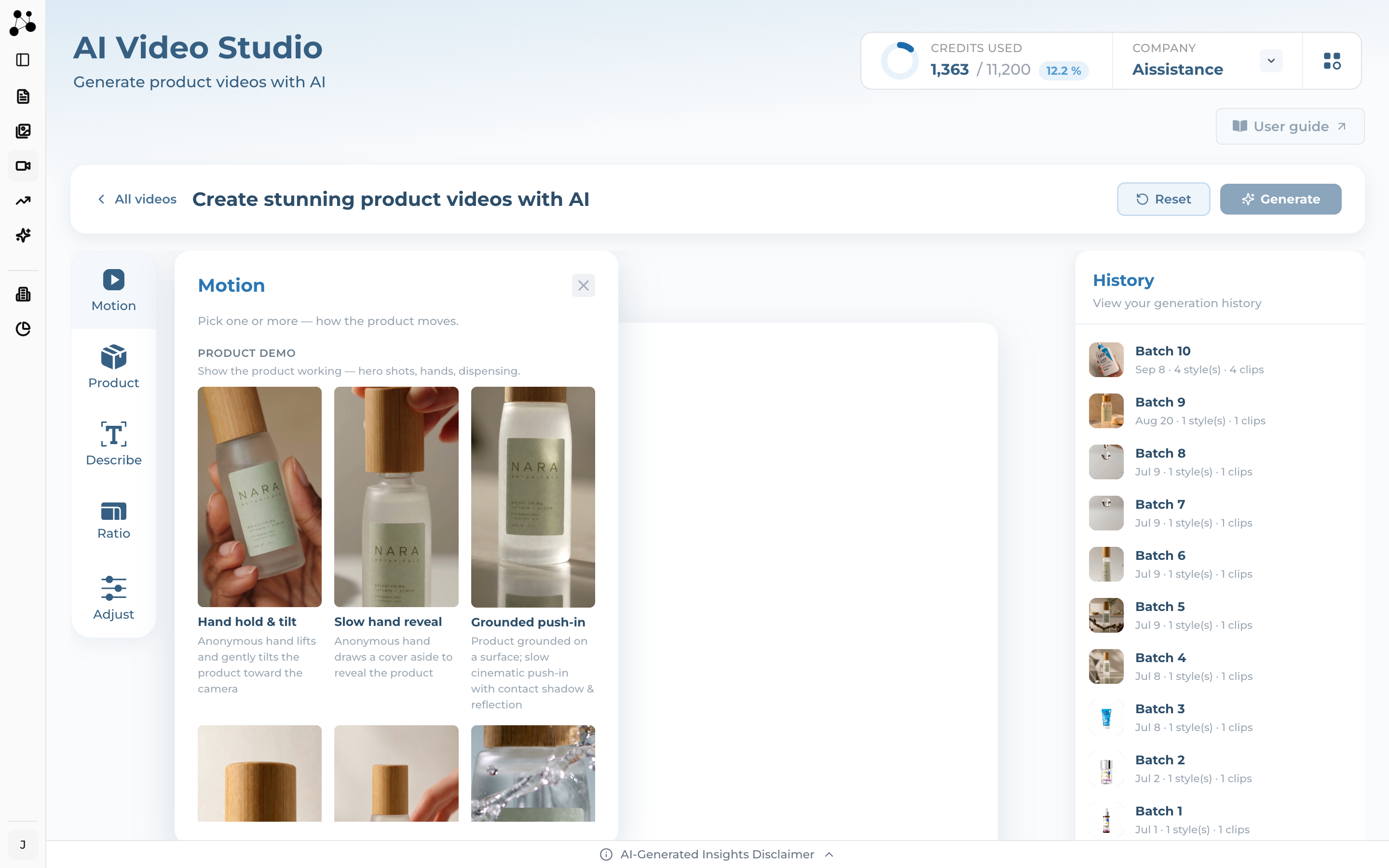
The Motion panel showing a grid of motion templates grouped into categories
Step 2

Pick a Motion Template

  • The Motion panel is a grid of templates grouped by category. Pick one or more — each adds a clip to your batch
  • A small badge marks templates that include ambient audio
  • The step tabs on the left are the five steps; Reset clears your choices and Generate sits top-right
Ai-ssistance EcommerceIQ — Market Insights
Motion templates

21 templates across four categories

Motion is how the product moves on screen. Pick one or more — each one you add becomes part of the batch.

Product demo Hero shots, hands, dispensing, push-ins — the workhorse category for showing a product in use.
Unboxing Open the box and reveal what’s inside, with or without packaging.
Education Explain an ingredient, a benefit, or how to use it — science-led shots.
Texture & ASMR Close, slow, tactile — for when the formula itself is the subject.

Ai-ssistance EcommerceIQ — Market Insights
Context inputs

Each motion asks for the context it needs

Every clip is anchored to your product photo. Some motions ask for one extra reference — the exact context that shot needs — so the video shows your real formula, packaging, or ingredient instead of a generic stand-in.

Texture A close-up of the formula — and whether it’s clear or opaque — so its real colour and consistency carry through.
Box The outer carton, so an unboxing reveals your real packaging.
Ingredient The active or raw ingredient, shown alongside the product in explainer shots.
Dispenser The pump, dropper, or nozzle, for the dispensing beat.
Ai-ssistance EcommerceIQ — Market Insights
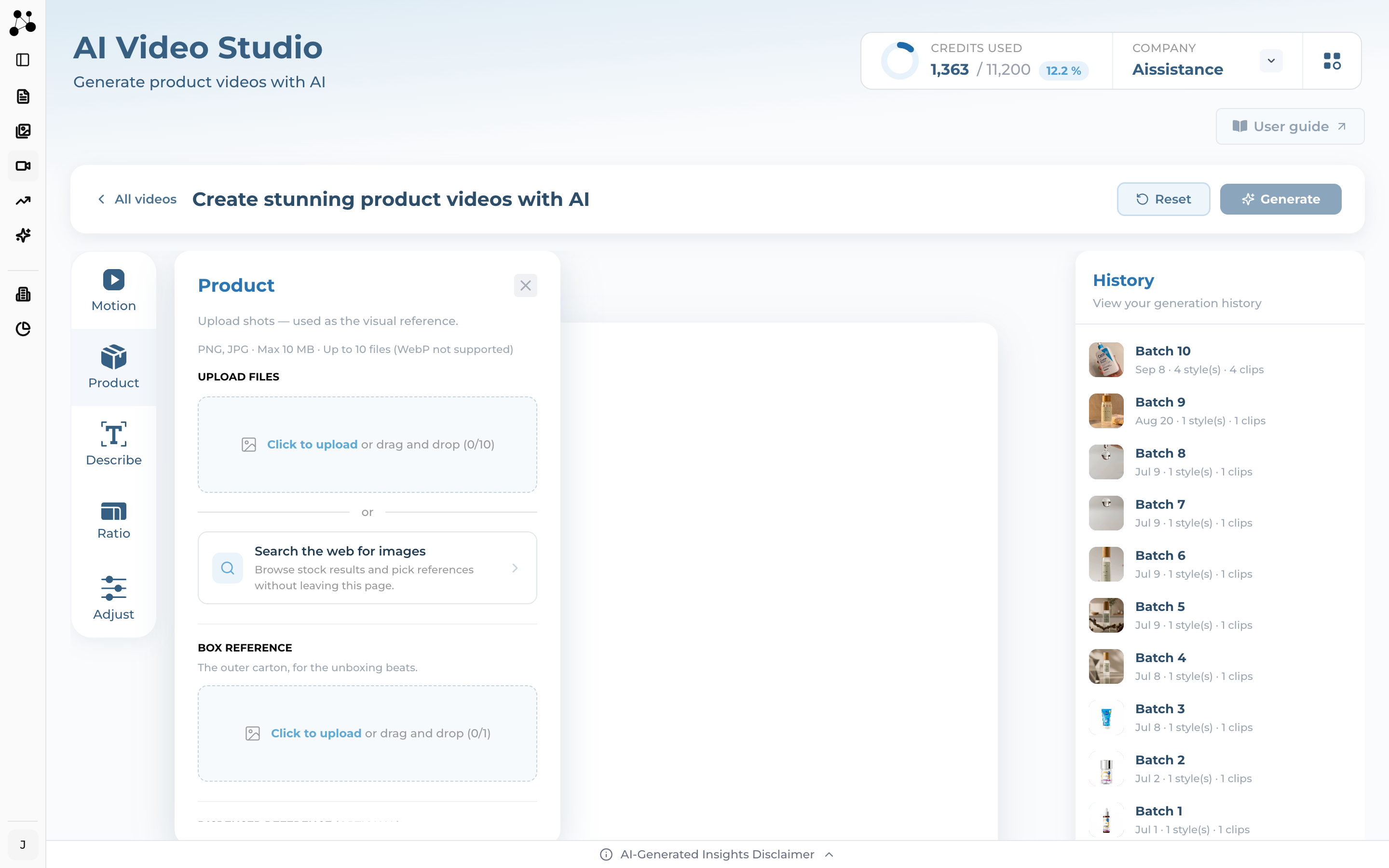
The Product panel with the upload area, a Search the web option, and per-motion reference slots for Box, Dispenser and Texture
Step 3

Bring in Your Product Image

  • In the Product panel, upload your shots — they’re used as the visual reference. JPG or PNG, up to 10 MB, up to 10 files (WebP isn’t supported)
  • No photo handy? Search the web for images and pick a reference without leaving the page
  • The motion you picked adds reference slots for what that shot needs — a texture close-up, the box, or the ingredient
Ai-ssistance EcommerceIQ — Market Insights
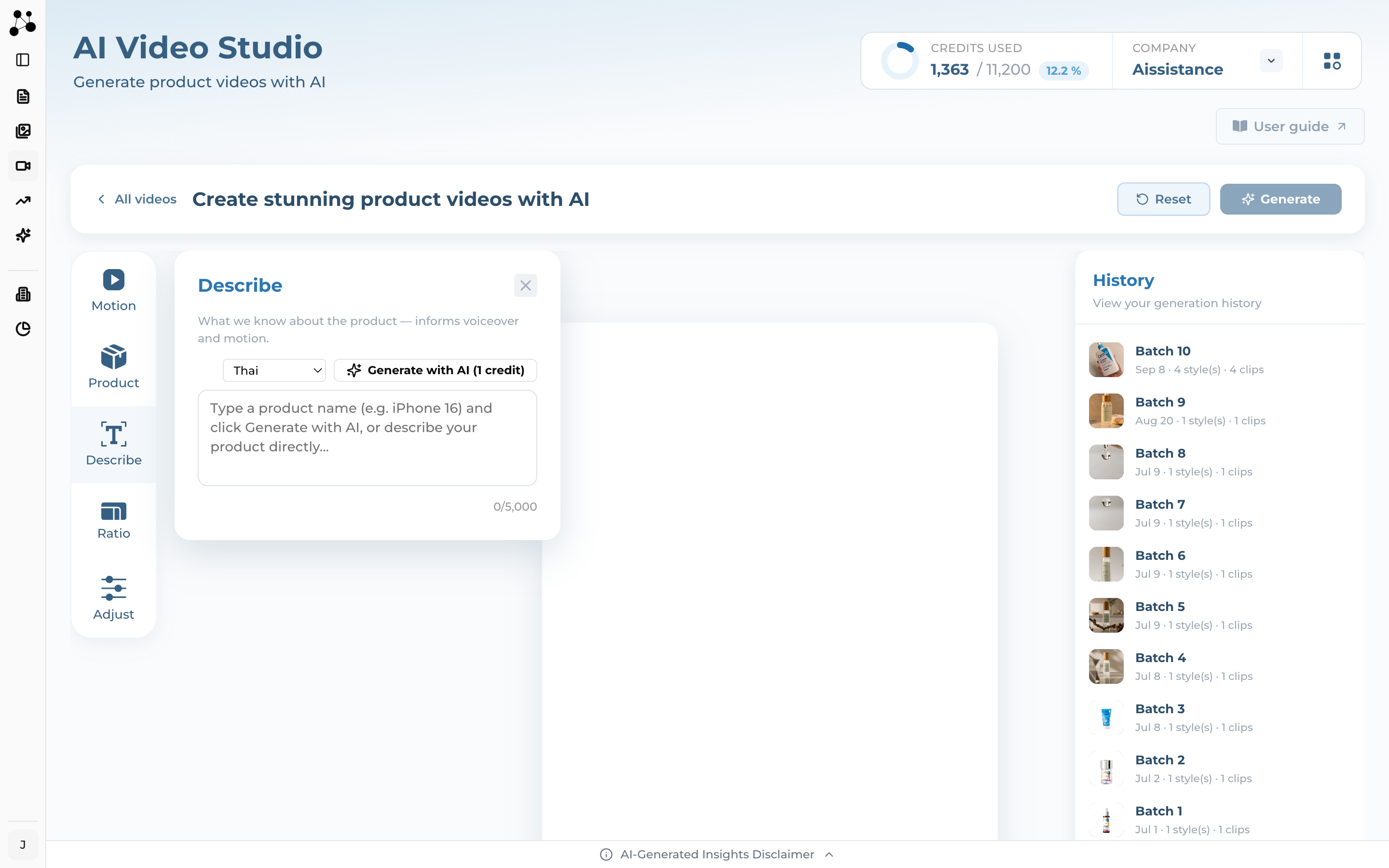
The Describe panel with an output-language selector and a description text box
Step 4

Describe the Product

  • The Describe panel captures what the product is — this text gives the studio product context for the generated clip
  • Set the output language the description is written in
  • Write it yourself, or let AI draft it — see the next slide
Ai-ssistance EcommerceIQ — Market Insights
Describe

Write the description, or let AI do it

The Describe panel tells the studio what the product is — that text becomes the product context the clip is generated around. Write it yourself or generate it.

Generate with AI Type a product name and let AI draft the description — each draft costs 1 credit.
Pick the output language Choose the language the description is written in — from English and Thai to Japanese, Korean, and more.
Or write it yourself Prefer your own words? Type up to 5,000 characters describing your product. Writing it yourself is free.
Ai-ssistance EcommerceIQ — Market Insights
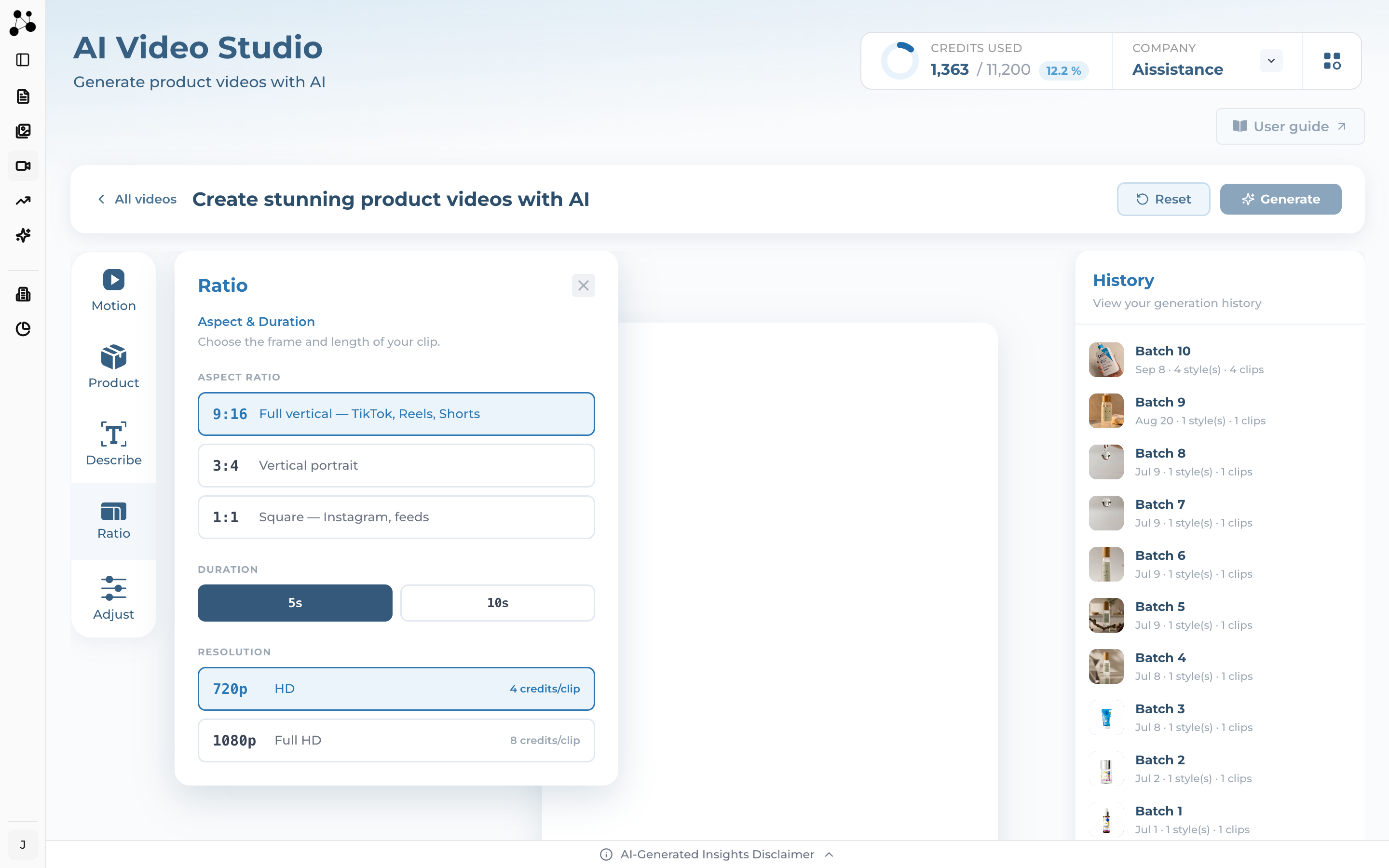
The Ratio panel with aspect-ratio, duration and resolution choices and a per-clip credit price
Step 5

Length & Aspect

  • The Ratio panel sets the frame and length — start with an aspect of 9:16, 3:4, or 1:1
  • Then set the clip length to 5s or 10s
  • Pick a resolution — 720p or 1080p — and the panel shows the per-clip price for each as you choose
Ai-ssistance EcommerceIQ — Market Insights
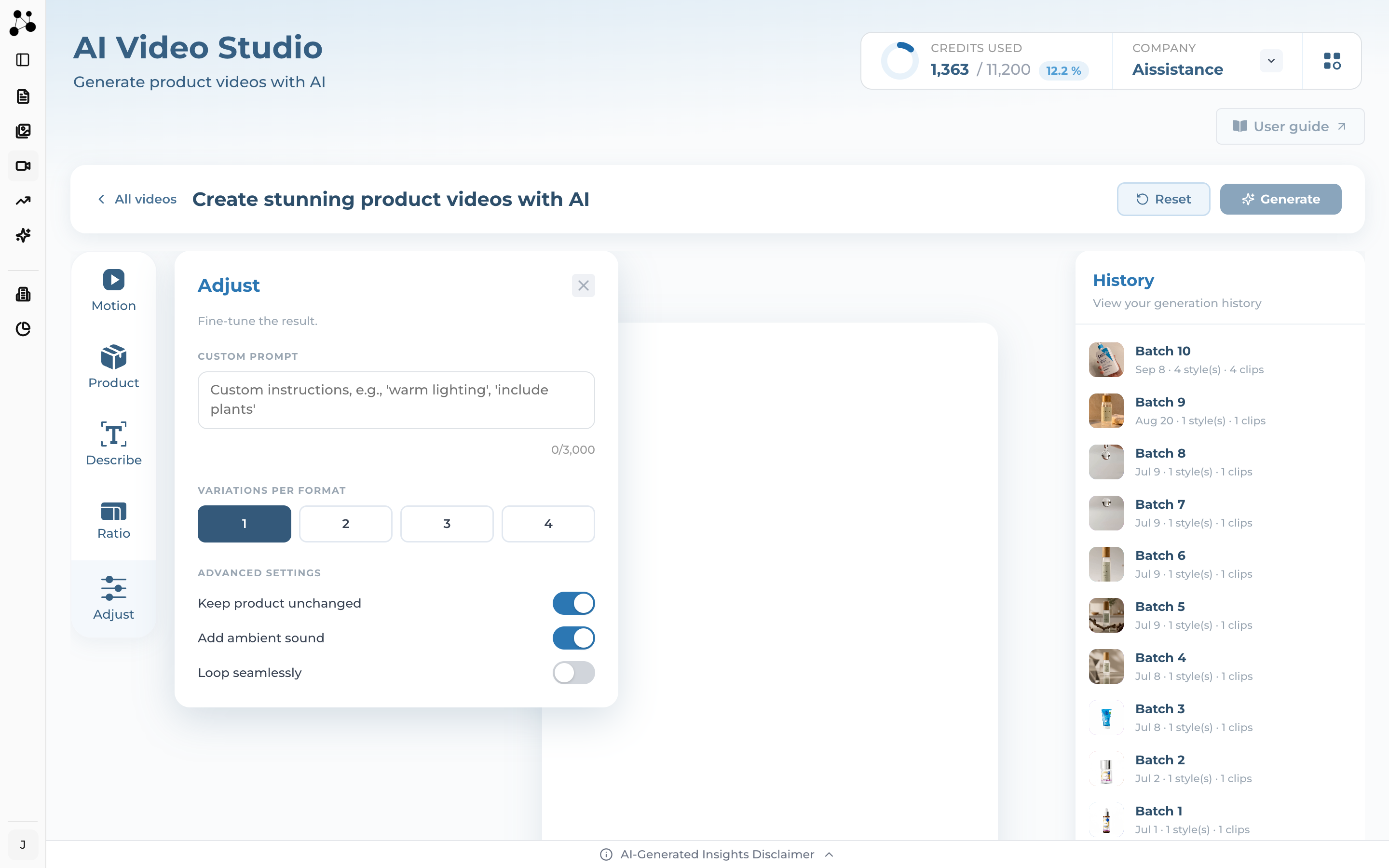
The Adjust panel with a custom-prompt box, a variations selector and advanced toggles
Step 6

Fine-Tune the Result

  • The Adjust panel takes a custom prompt for extra direction — e.g. “warm lighting”
  • Variations per format (1–4) sets how many takes you get of each clip — and multiplies the batch cost
  • Toggles: Keep product unchanged, Add ambient sound, and Loop seamlessly
Ai-ssistance EcommerceIQ — Market Insights
03

What It Costs

Credits, per clip and per batch

Ai-ssistance EcommerceIQ — Market Insights
What it costs

What one clip costs

Price depends on two things you set in the Ratio panel: how long the clip is, and its resolution. 1080p costs double 720p, and duration rounds up to the next 5 seconds. Here is every combination the menu offers.

5s · 720p 4 credits
5s · 1080p 8 credits
10s · 720p 8 credits
10s · 1080p 16 credits
Ai-ssistance EcommerceIQ — Market Insights
What it costs

What a whole batch costs

A batch multiplies out. Credits are checked once when you submit, then charged per clip as each one finishes.

Multiply it out Batch cost = clip price × motion templates × variations. Two templates and three variations of a 5s/720p clip is 4 × 2 × 3 = 24 credits.
Checked at submit The full batch cost is checked once, when you hit Generate. There is no hold or reservation before that.
Charged per clip You are charged per clip as each one completes — not all up front.
Failed clips are free If a clip fails, you are not charged for it.
Ai-ssistance EcommerceIQ — Market Insights
04

Generate & Collect

Submit, wait, review, download

Ai-ssistance EcommerceIQ — Market Insights
Generate & collect

Generating runs in the background

Submit the batch and leave — clips render in the background while you do other things. Your history keeps every run.

Submit and step away You don’t have to watch. Come back and the finished clips are waiting in your gallery.
History remembers Open History to revisit past runs, regenerate a single clip, or Regenerate All.
Covers come from the clip Each clip’s cover frame is taken from the video itself — there’s no separate thumbnail to set.
Ai-ssistance EcommerceIQ — Market Insights
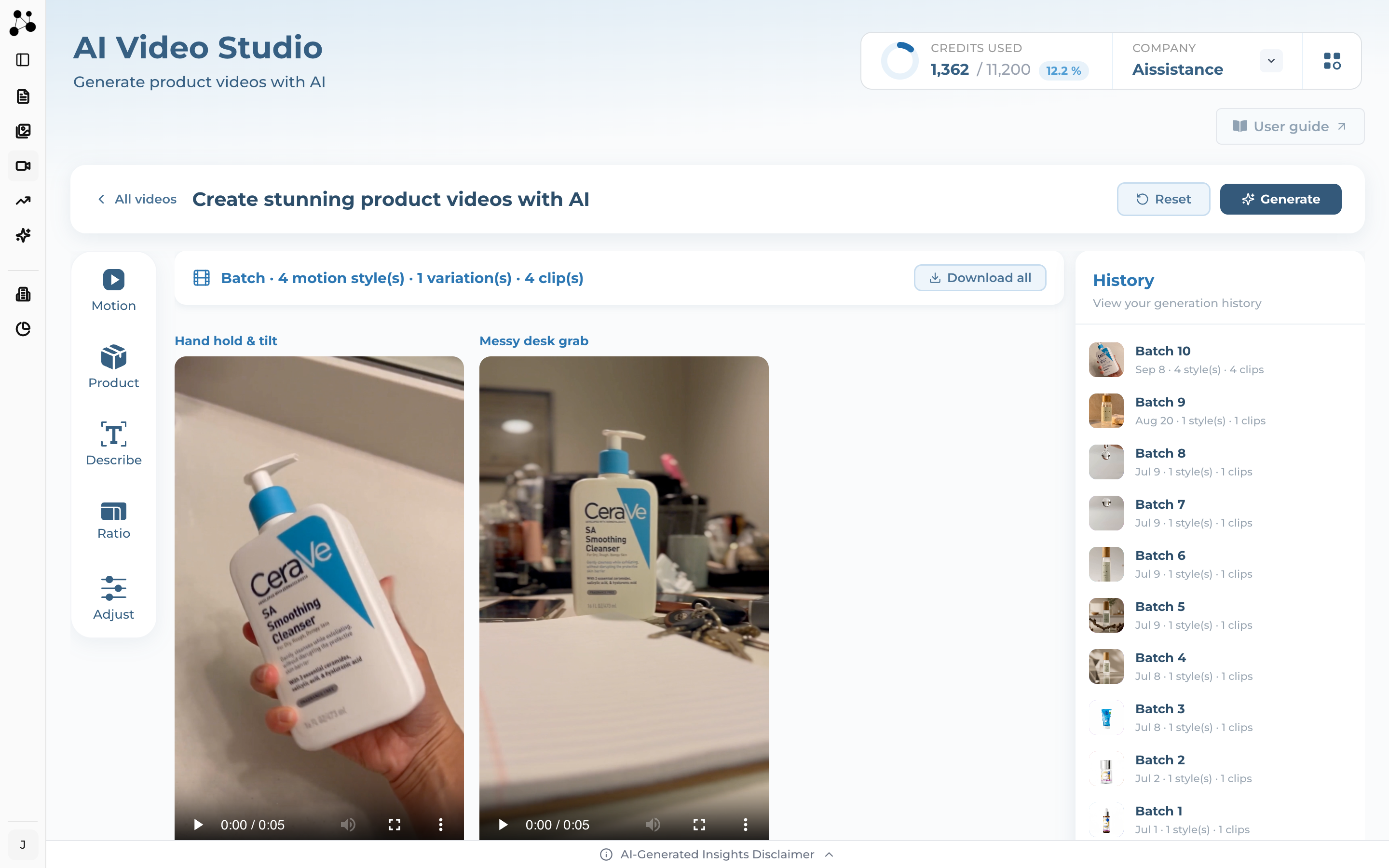
A completed batch with clip previews, download buttons and per-clip regenerate controls
Step 7

Review & Download

  • When a batch finishes, open it to preview each clip and play it back
  • Download the clips you want to post
  • Not quite right? Regenerate a single clip, or Regenerate All, from the same batch
Ai-ssistance EcommerceIQ — Market Insights
05

FAQ & Troubleshooting

The questions everyone asks first

Ai-ssistance EcommerceIQ — Market Insights
FAQ

FAQ & Troubleshooting

The questions that come up most.

Which files work? JPG and PNG, up to 10 MB, up to 10 per video. WebP isn’t supported.
A clip failed — was I charged? No. Failed clips are free; only completed clips cost credits.
Why is my run queued? Either your org’s in-flight limit or shared studio capacity. It clears on its own.
How is batch cost counted? Clip price × motion templates × variations, checked at submit and charged per finished clip.
Ai-ssistance EcommerceIQ — Market Insights
EcommerceIQ — Market Insights Ai-ssistance

Start making videos that sell

AI assistance that actually assists.

aissistance.us